For technicians
Your day, one job at a time.
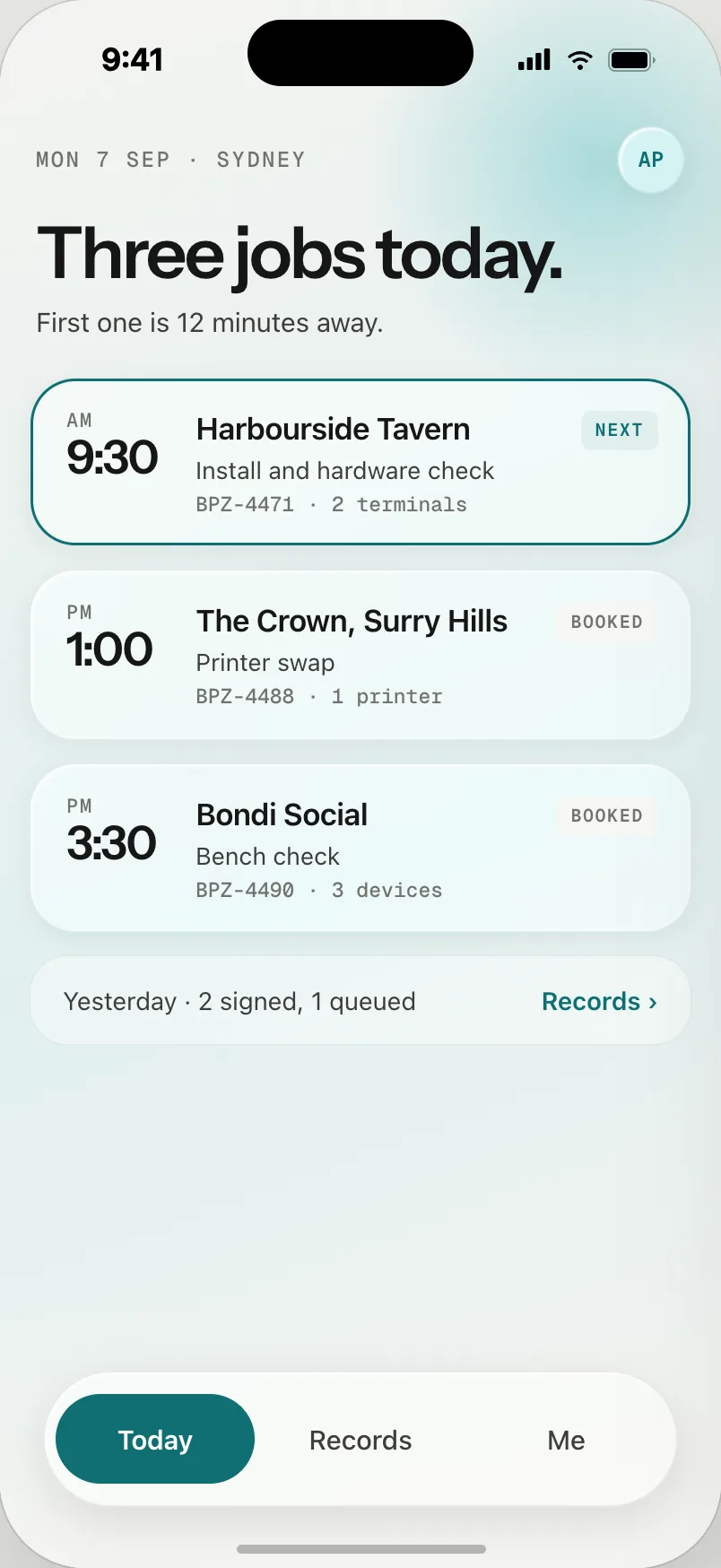
Open the app, see what is booked, scan the label on the device in front of you and answer the questions. When the venue signs, you are done. Nothing to write up afterwards.
Getting the app
Four steps, once.
Find your invitation
Your admin sends it to your work email. If it has expired, ask them to send it again; old links stop working.
Open it on your phone
Set a password. You land straight in your surveys; there is no admin area to get lost in.
Add it to your home screen
Share → Add to Home Screen. The seal icon appears next to your other apps and opens full screen.
Allow the camera
The app scans QR labels to bind a device to a section and takes photos where a question asks for one.
On site
What a visit looks like in the app.
Arrive
Tap the job. The app notes the time and how far you are from the venue.
Scan
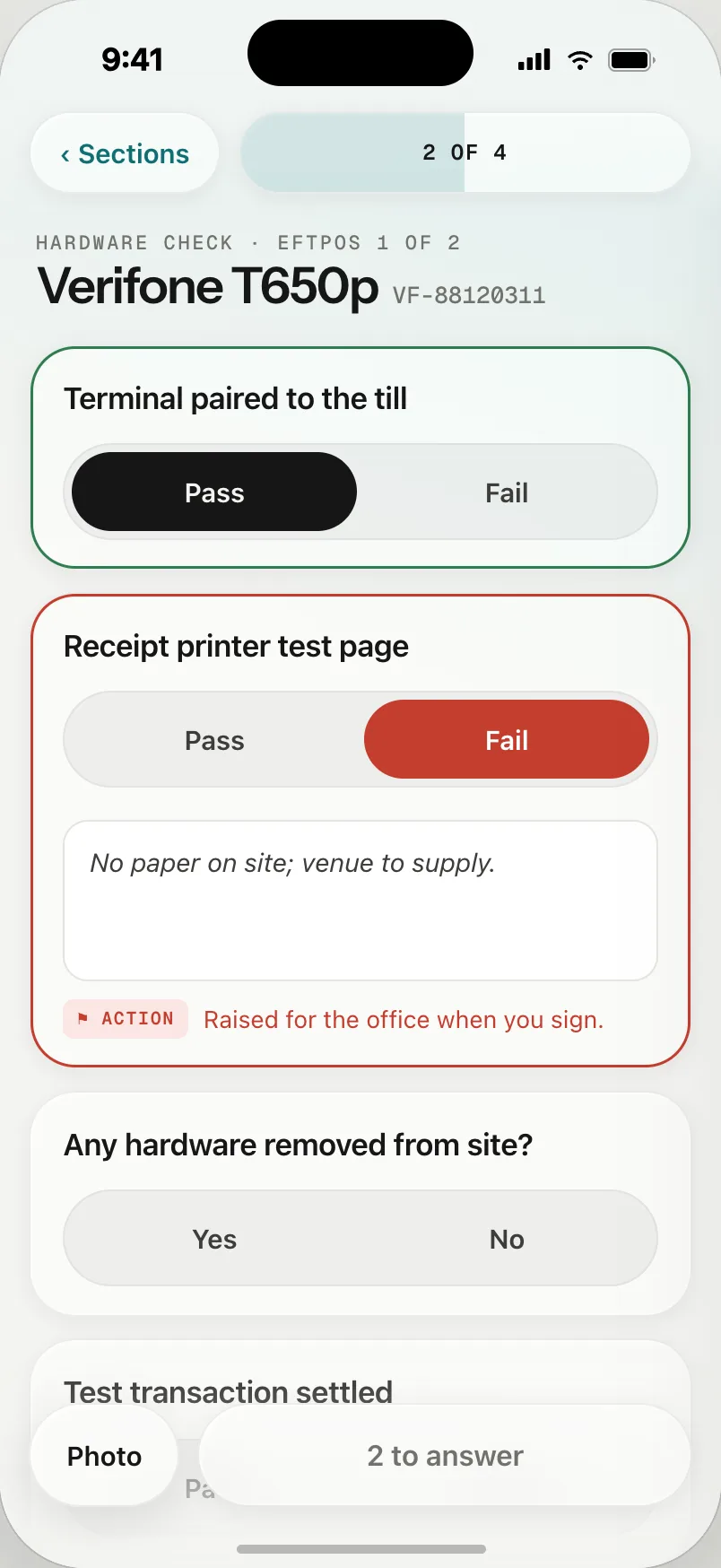
Each device section starts with a scan of its QR label. The serial fills itself in.
Answer
Pass or fail, yes or no, a number, a photo. A fail asks for a note and raises an action for the office.
Sign
Hand the phone to the venue contact. Their signature and name seal the record.
Sync
The record shows as queued until the office has it, then as signed.